Import Transactions from a CSV File into Brim
You can import transactions into Brim from any CSV file, whether it’s a bank export, a spreadsheet, or data from another budgeting app.
The Easiest Way to Import
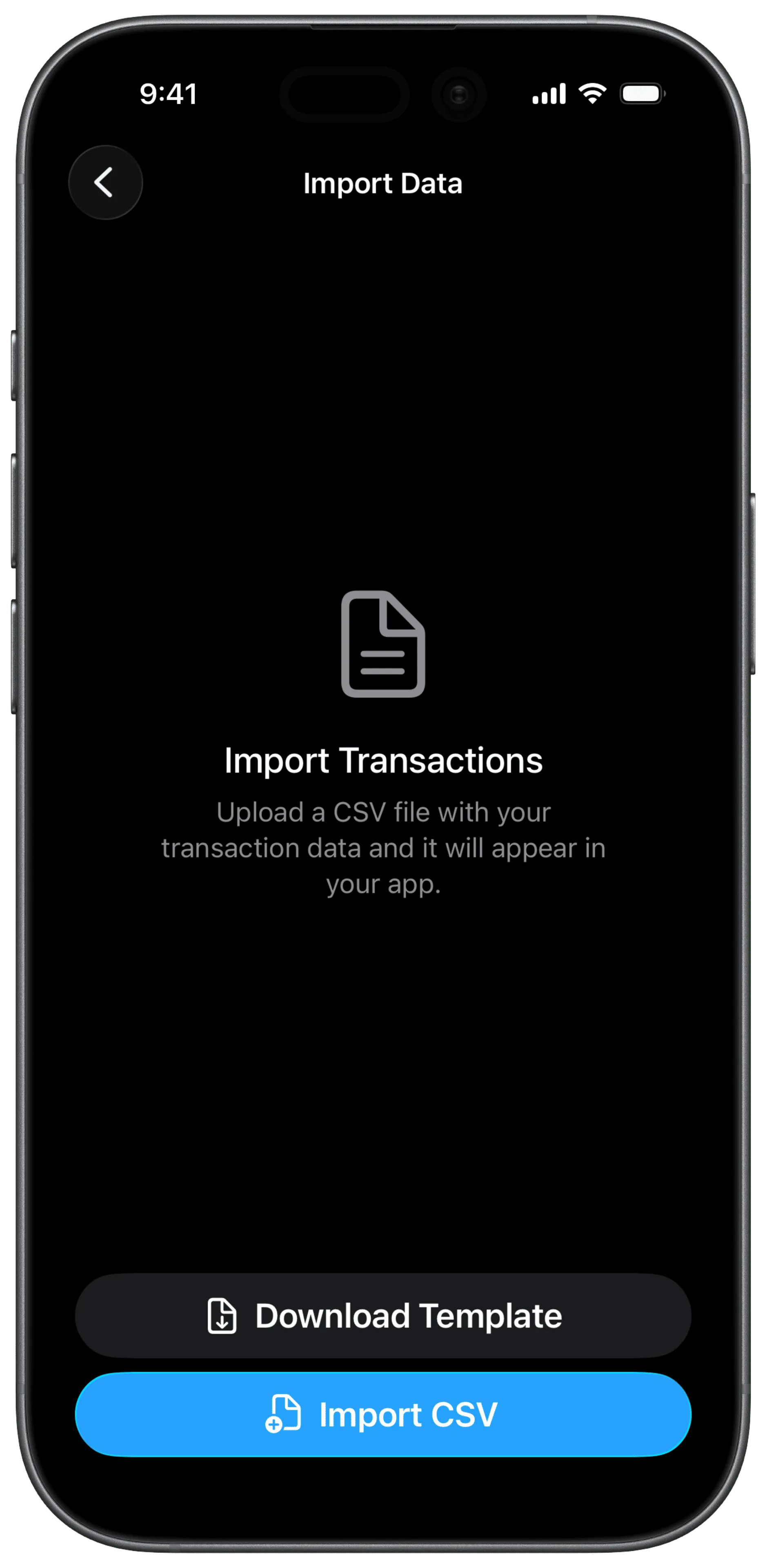
- Download the template: Download CSV Template
- Fill it in with your transactions using any spreadsheet app (Excel, Google Sheets, Numbers)
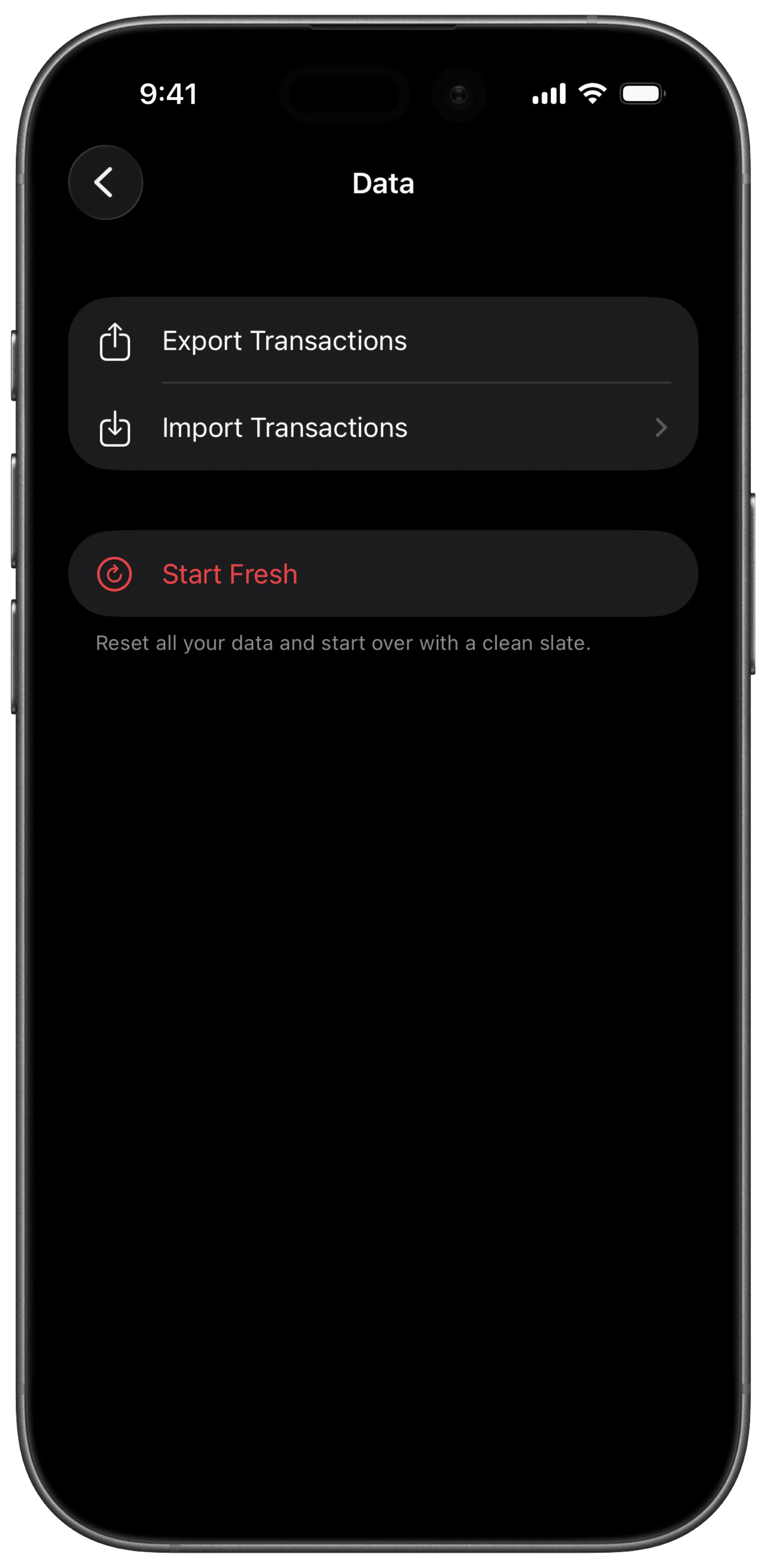
- Import it into Brim from Settings → Data → Import Transactions
The template has all the right column headers and a few example rows to guide you. Delete the examples, add your data, and you’re good to go.
Column Reference
| Column | Required | Description |
|---|---|---|
| Date | Yes | Transaction date |
| Amount | Yes | Transaction amount (negative = expense, positive = income) |
| Category Type | No | expense, income, or saving |
| Group Category Name | No | Category group (e.g., “Food & Drink”) |
| Category Emoji | No | Emoji for the category (e.g., 🛒) |
| Category Name | No | Category name (e.g., “Coffee”) |
| Account | No | Account name (e.g., “Checking”) |
| Account Type | No | Must be spending or saving |
| To Account | No | Destination account (for transfers only) |
| To Account Type | No | Must be spending or saving |
| Note | No | Transaction note or memo |
| Tags | No | Tags separated by semicolons (e.g., work;personal) |
Only Date and Amount are required. All other columns are optional. Brim will fill in sensible defaults for anything missing.
How to Format Each Field
Date
Brim accepts these date formats:
2024-01-15 14:30:00(recommended)2024-01-1501/15/202415/01/20242024/01/15
Amount
Use a plain number with a period as the decimal separator.
- Expenses: Use a negative number →
-25.50 - Income: Use a positive number →
1200.00
Brim automatically strips currency symbols ($, €, £) and thousands separators (,), so $1,200.00 works too.
European-style formatting with periods as thousands separators (e.g., 1.200,00) is not supported. Use 1200.00 instead.
Category Type
| Value | Meaning | Examples |
|---|---|---|
expense | A regular expense | Rent, utilities, gas, groceries |
income | Income received | Salary, bonuses, freelance payments |
saving | Saving contribution | Investments, retirement savings, emergency fund |
Account Type
This field is strictly validated. Only two values are accepted:
spendingfor everyday accounts (checking, cash, credit cards)savingfor savings accounts and goals
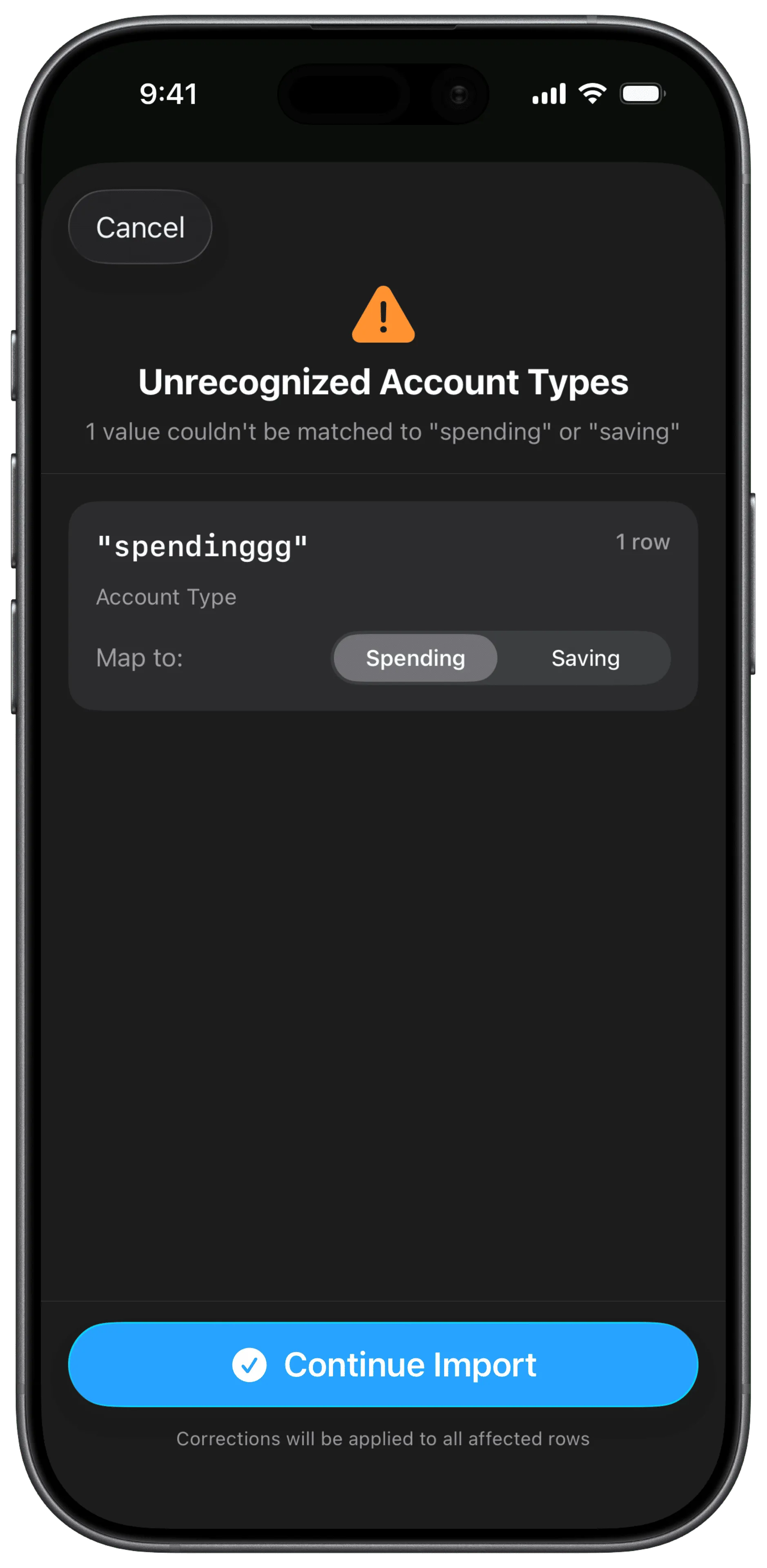
If Brim finds a value it doesn’t recognize (like “checking” or “credit card”), it will ask you to correct it before importing.
Tags
Separate multiple tags with semicolons:
work;personal;reimbursementHow to Import
Step 1: Open the Import Screen
- Go to Settings
- Tap Data
- Tap Import Transactions
- Select your CSV file from Files, iCloud, or any connected storage
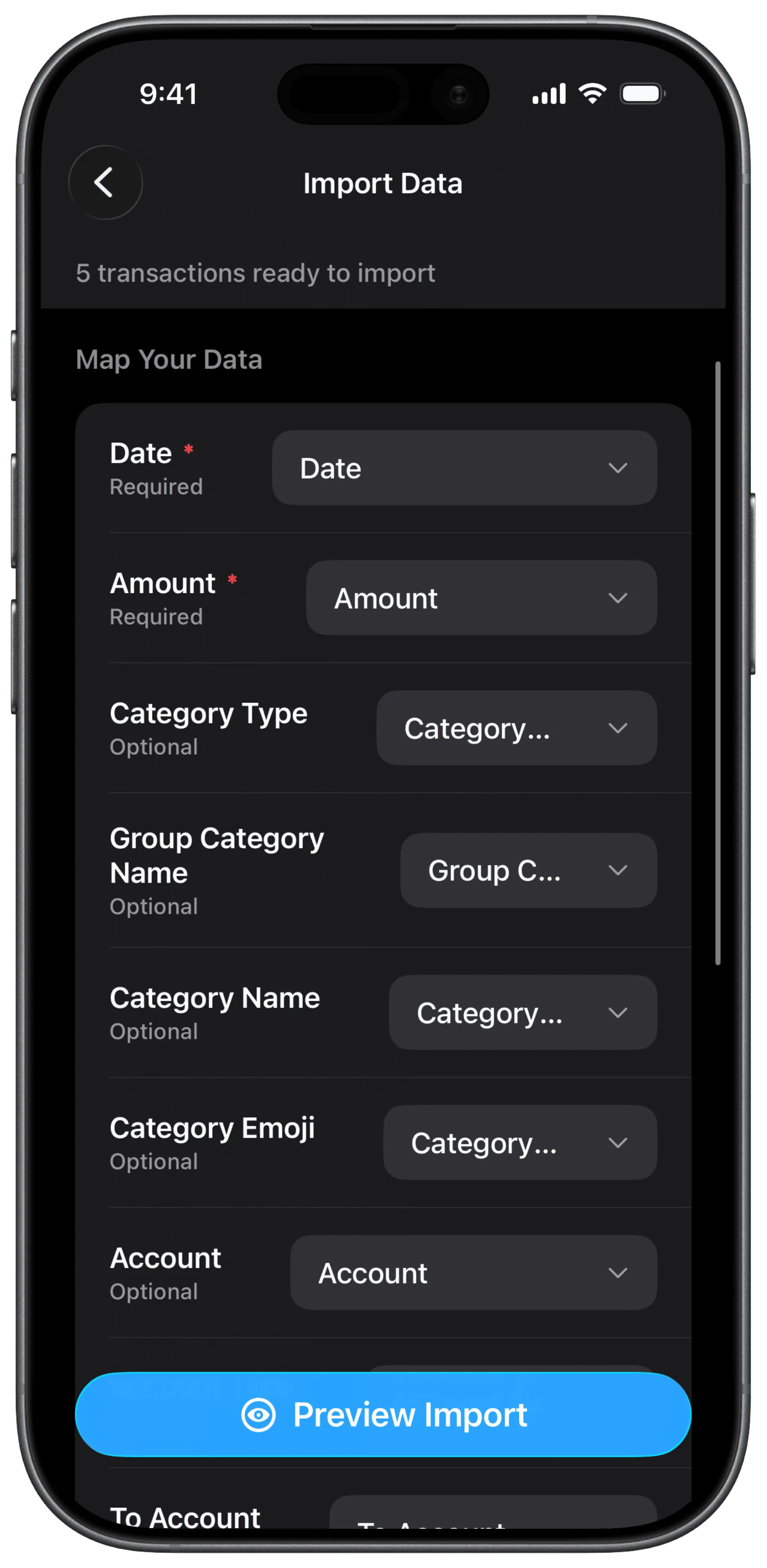
Step 2: Map Your Columns
If your column headers don’t match Brim’s expected names exactly, you’ll be asked to map them manually. Match each of your columns to the corresponding Brim field.
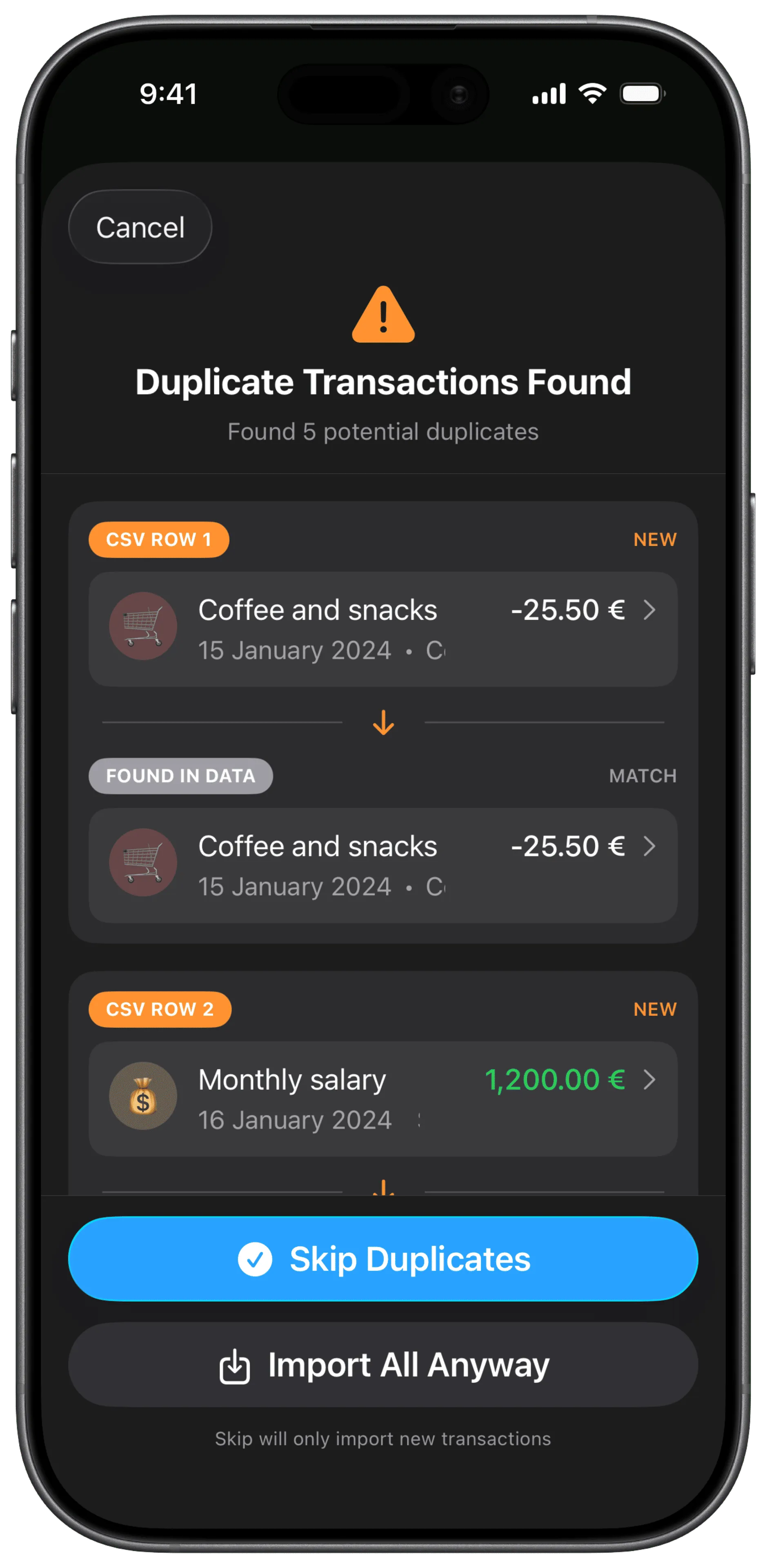
Step 3: Review Duplicates
If Brim detects transactions that already exist (same date, same amount, and same category or note), it will show you a list and ask whether to:
- Skip Duplicates to import only new transactions
- Import All Anyway to import everything, including duplicates
Step 4: Fix Account Types
If any Account Type or To Account Type values aren’t recognized, Brim will ask you to correct them before importing. For each unrecognized value, choose either Spending or Saving.
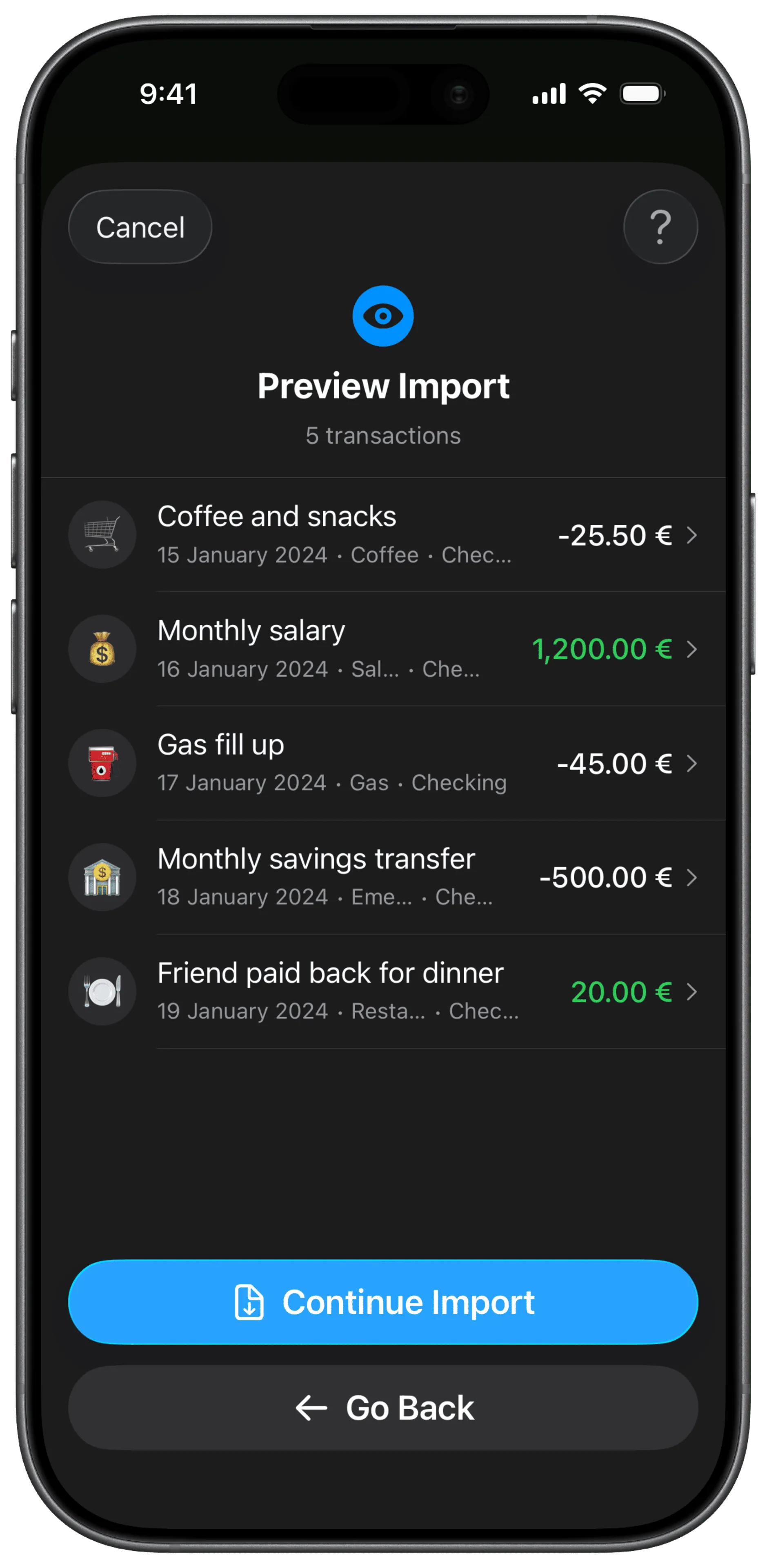
Step 5: Preview
You can preview what you’ll be importing before confirming.
What Gets Auto-Created
When you import, Brim automatically creates anything that doesn’t exist yet:
- Accounts created with a zero balance and the type from your Account Type column
- Category Groups created if the group name is new (defaults to “Imported”)
- Categories created if the category name is new (defaults to “Uncategorized” with a 💰 emoji)
- Tags created if the tag name is new
Tips
- Use the template. It’s the fastest way to get the format right without guessing.
- Bank exports usually need minor adjustments: rename the headers and make sure expenses are negative.
- Emojis work natively in the Category Emoji column.
- Export before importing. If you already have a bunch of transactions in Brim, we suggest exporting first (Settings → Data → Export Transactions) to create a backup, then import your new data.
Troubleshooting
”Invalid date format” error on some rows
- Make sure your dates use one of the five supported formats listed above
- Check for stray text or extra spaces in the Date column
”Invalid amount” error on some rows
- Remove any currency symbols other than $, €, or £
- Make sure the decimal separator is a period, not a comma
- Check for text like “N/A” or dashes in the Amount column
Account Type correction sheet keeps appearing
- Only
spendingandsavingare valid. Values like “checking”, “credit card”, or “investment” need to be corrected to one of the two accepted types
Some transactions are missing after import
- Check the import summary for failed rows and error messages
- Rows missing a Date or Amount will be skipped
Duplicates were imported
- If you chose “Import All Anyway”, duplicates are included intentionally
- To avoid this, choose “Skip Duplicates” on re-import
Need more help? Contact us.