Add Apple Pay Transactions to Brim Automatically
With iOS Shortcuts, you can automatically log Apple Pay transactions in Brim the moment you tap to pay.
Video Walkthrough
Watch the 1-minute setup, or follow the detailed steps below.
Requirements
- iOS 17 or later
- Apple Pay set up with at least one card
- Brim app installed
Step-by-Step Setup
Step 1: Create a New Automation
- Open the Shortcuts app on your iPhone
- Tap the Automation tab at the bottom
- Tap the + button to create a new automation
- Select Wallet
Step 2: Select Your Card
- Choose the card you want to apply the shortcut to
- Scroll down and uncheck “Notify When Run”. This avoids notifications every time the shortcut runs
- Tap Next
Step 3: Add the Brim Action
- Tap Create New Shortcut
- Search for Brim
- Select Add Transaction
Step 4: Pass the Transaction Data
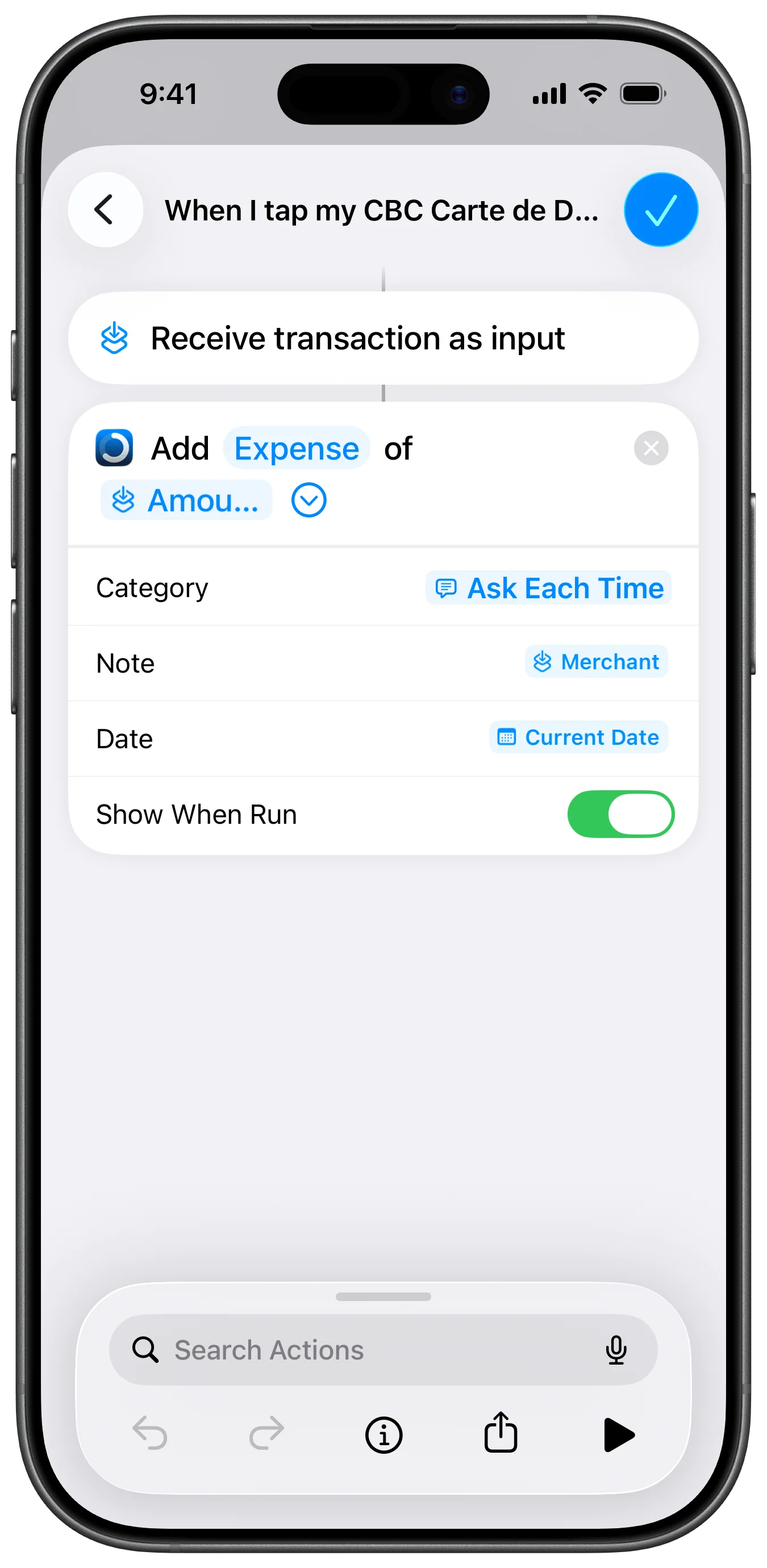
Now we’ll pass the Apple Pay transaction info (amount and merchant) to Brim.
Set up the Amount:
- Tap the Amount field
- Tap Select Variable
- Choose Shortcut Input
- Tap Shortcut Input again and select Amount
Expand the settings:
Tap the arrow to unfold the menu and access all shortcut settings.
Set up the Category:
- Tap the Category field
- Select Ask Each Time. This prompts you to categorize each transaction
Set up the Note (optional):
- Tap the Note field
- Tap Select Variable
- Choose Shortcut Input
- Tap Shortcut Input again and select Merchant Name
Set up the Date:
- Tap the Date field
- Select Current Date
Step 5: Final Settings
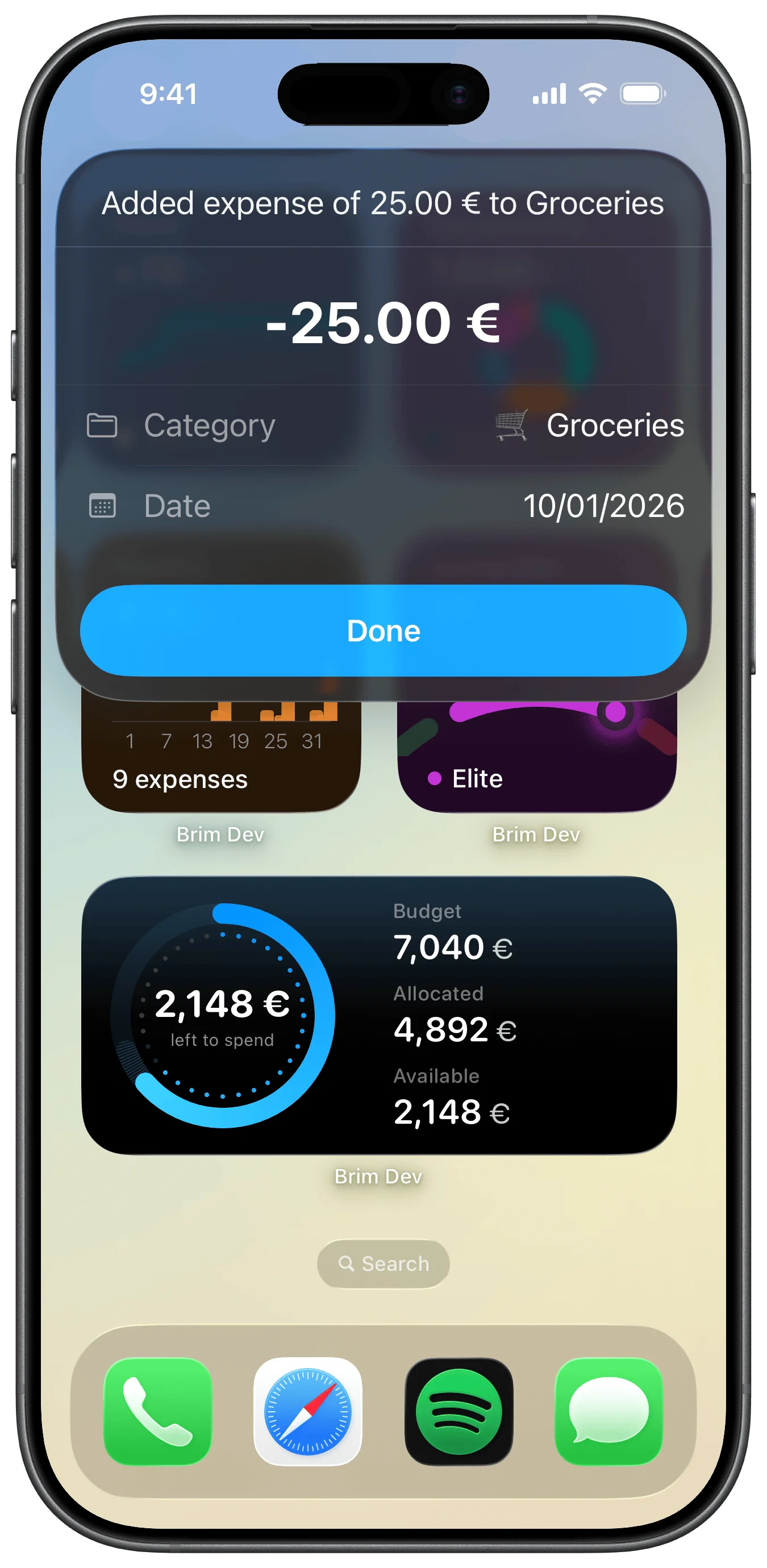
- Check “Show When Run”. This gives you a confirmation that the transaction was recorded
- Tap Done to save your automation
You’re all set. Every time you tap to pay with Apple Pay, the shortcut will trigger and ask you to categorize the expense.
How It Works
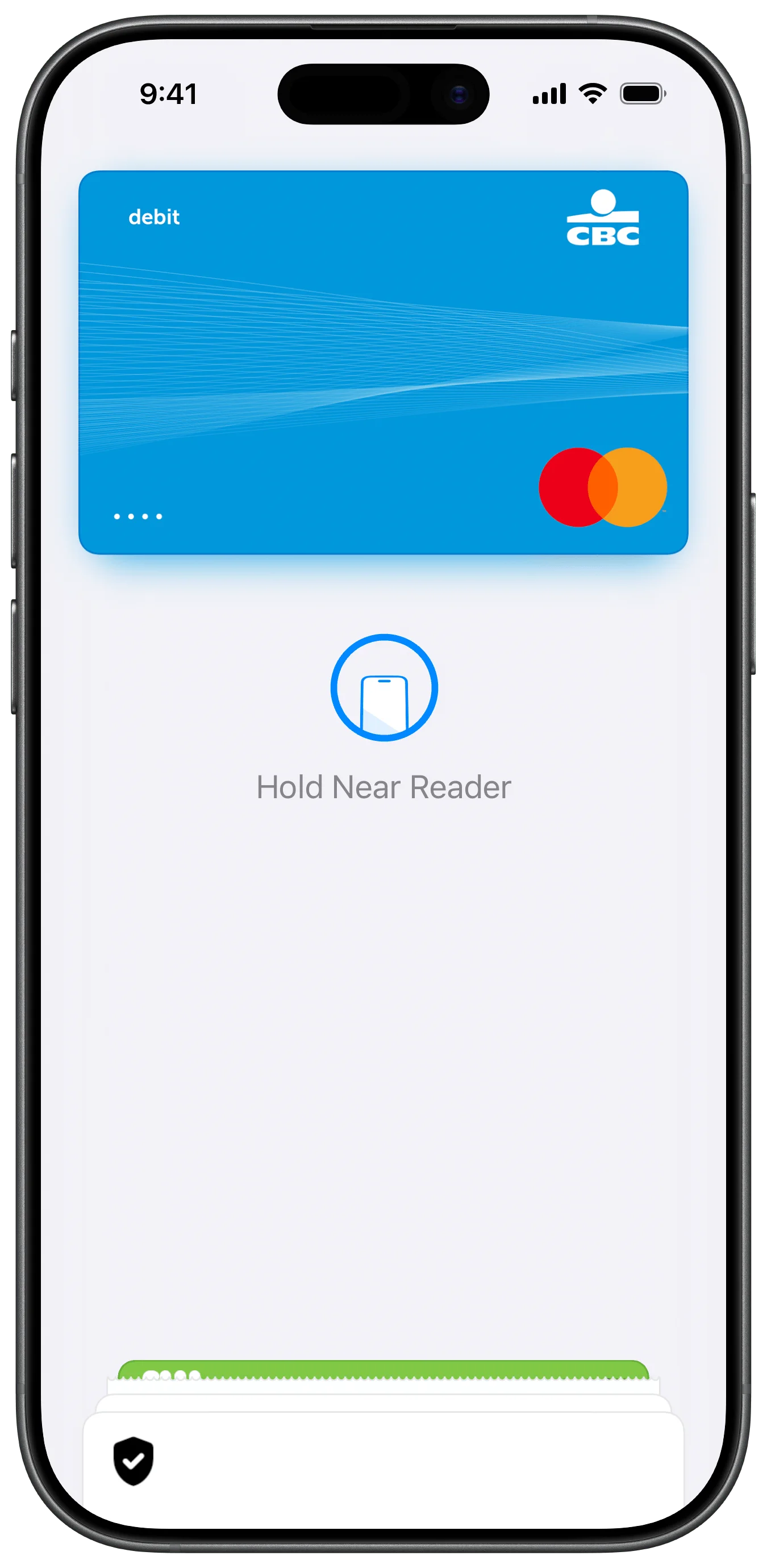
Every time you tap your iPhone to pay with Apple Pay using the selected card:
- The Shortcuts automation triggers automatically
- A prompt appears asking you to select a category
- The transaction is added to Brim with the correct amount, merchant name, and date
Tips
- Multiple cards? Create a separate automation for each card you want to track
- Suggested categories: When the shortcut asks for a category, Brim passes your suggested categories to the top of the list for quicker selection
Important Notes
Unlock your phone before paying. For the best results, unlock your iPhone before tapping to pay. This ensures the Shortcuts automation triggers correctly.
It may not work every time. The automation relies on a combination of Apple Pay, iOS Shortcuts, and the merchant’s payment terminal. With certain merchants or card providers, the shortcut may not trigger consistently. This is a limitation of iOS Shortcuts, not Brim.
Troubleshooting
The automation doesn’t trigger
- Unlock your phone before tapping to pay
- Make sure you’re using the correct card selected in the automation
- Verify that Apple Pay completed successfully
- Note: Some merchants or card providers may not trigger the automation reliably. This is an iOS Shortcuts limitation
The amount shows incorrectly
- Ensure you selected “Shortcut Input” then “Amount” in Step 4
Need more help? Contact our support team.